
Environment Variables
Environment variables allow you to configure your application with app-specific settings and secrets that can be accessed from your code at runtime.
Adding Environment Variables
Section titled “Adding Environment Variables”You can manage environment variables through the CLI or the dashboard.
Using the CLI
Section titled “Using the CLI”You can set environment variables using the FastAPI Cloud CLI. See the CLI documentation for detailed instructions.
Using the Dashboard
Section titled “Using the Dashboard”To add environment variables through the web dashboard follow these steps:
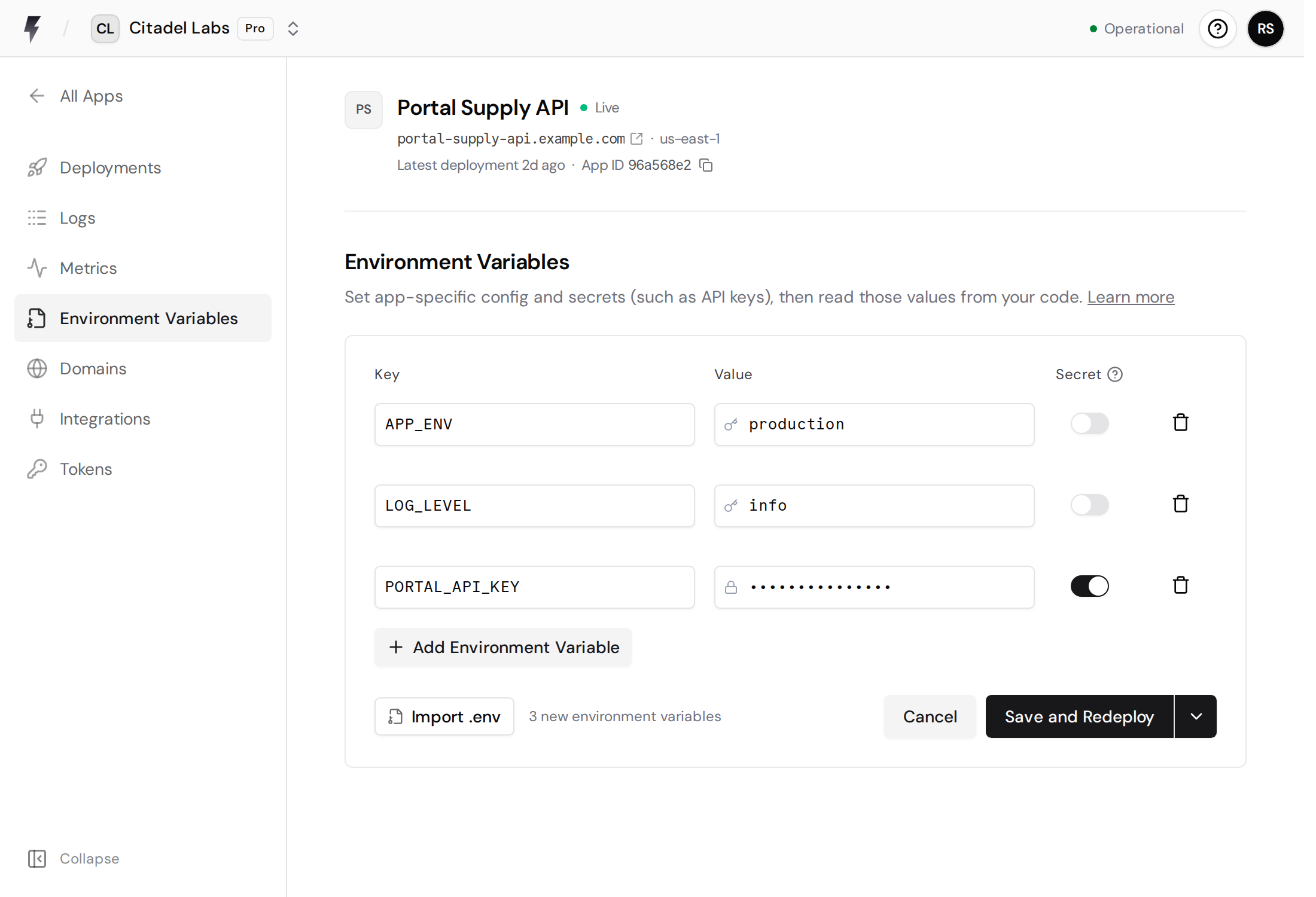
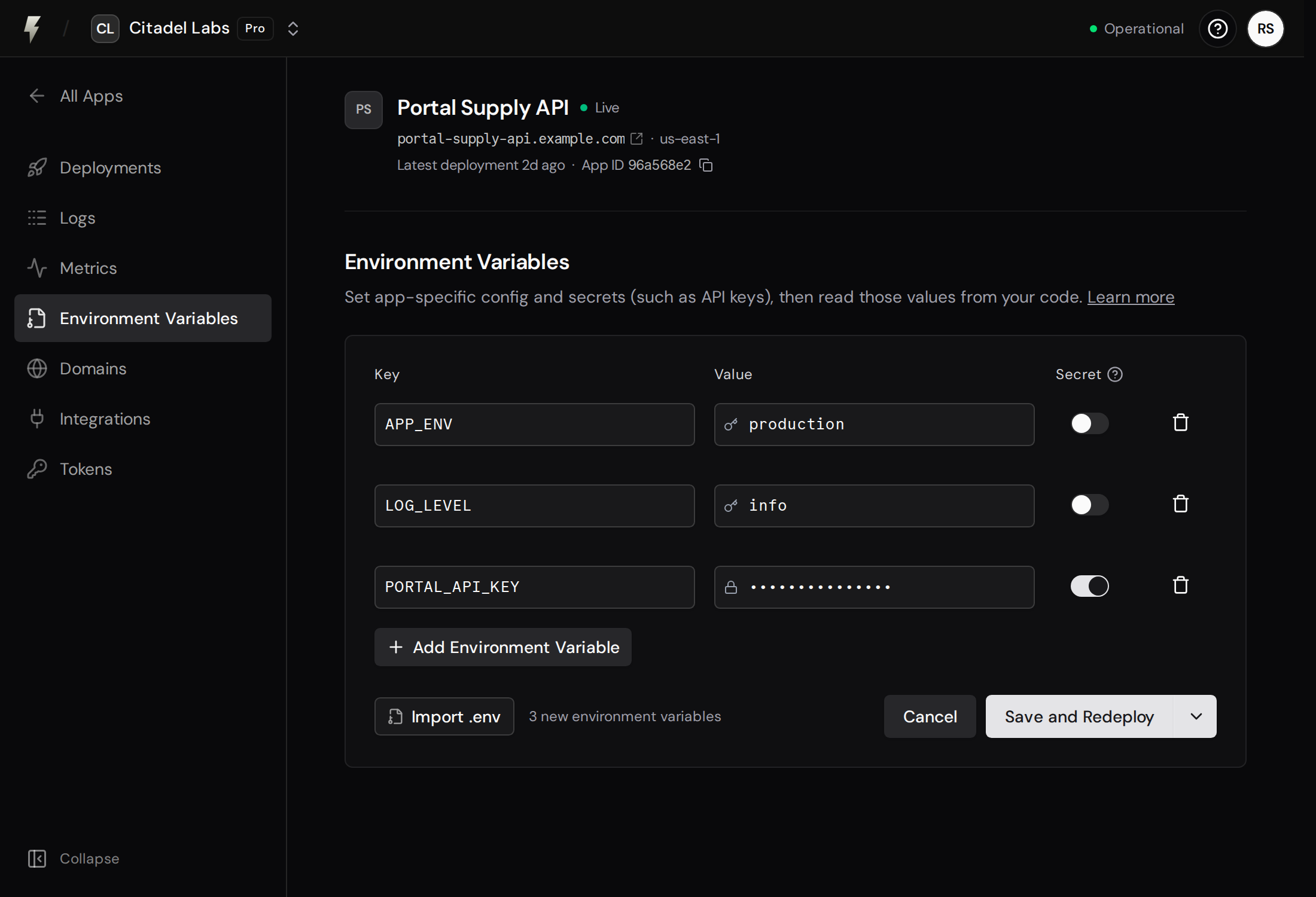
- Navigate to your App Details view
- Select Environment Variables option from the sidebar
- Click Add Environment Variable
- Enter the variable name and the value
- If you want to convert it to a secret and encrypt sensitive values, toggle the Secret switch
- Click Add Environment Variable again to add more variables if needed
- To remove a variable, just click the trash icon next to it
- Choose how to save your changes:
- Save Only - Saves changes that will apply on the next deployment
- Save and Redeploy - Saves and immediately redeploys your app with the new variables
Importing Environment Variables
Section titled “Importing Environment Variables”You can bulk-import environment variables from .env files instead of adding them one by one. This is particularly useful when migrating existing applications or setting up multiple variables at once.
How to Import
Section titled “How to Import”- Navigate to your App Details view
- Click Environment Variables option
- Click Import button
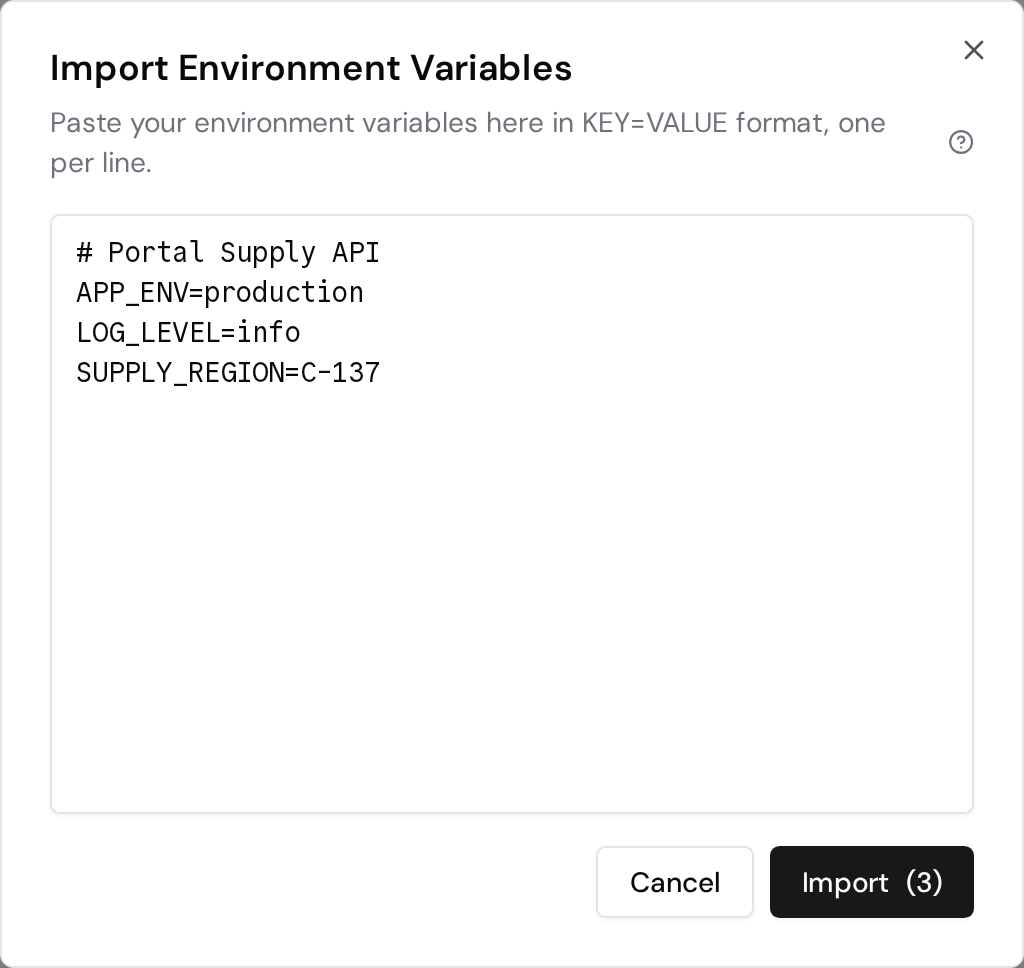
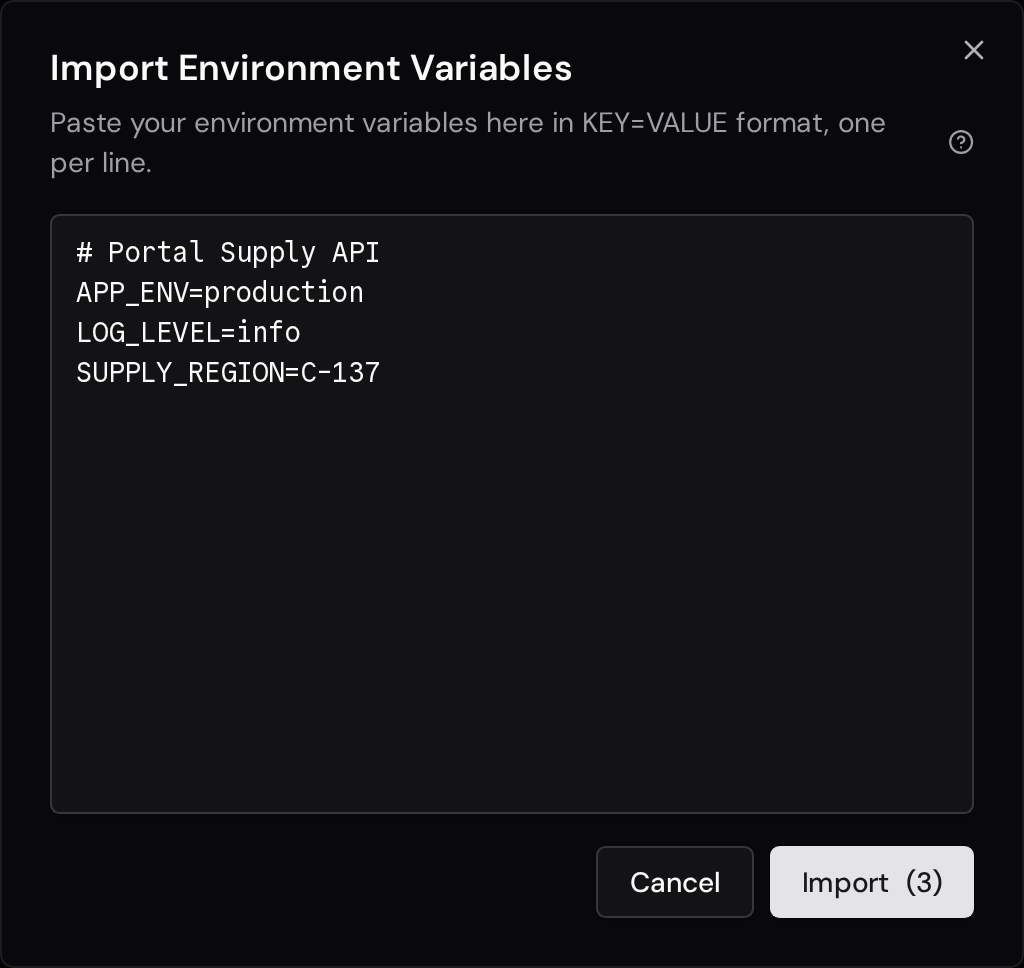
- Paste your environment variables in
.envformat into the text area - The dialog will show a count of parsed variables (e.g., “Import (3)”)
- Click the Import button to add the variables to your form
- Review the imported variables and make any needed adjustments
- Click Save Only or Save and Redeploy to persist your changes
Supported Format
Section titled “Supported Format”The import feature supports standard .env file format:
Basic format:
API_KEY=your_api_key_hereDATABASE_URL=postgresql://localhost/mydbDEBUG=trueQuoted values:
API_KEY="value with spaces"DATABASE_URL='single quoted value'Comments:
# Database configurationDATABASE_URL=postgresql://localhost/mydb# API settingsAPI_KEY=your_api_key_hereImport Behavior
Section titled “Import Behavior”- Comments are ignored: Lines starting with
#are skipped - Quotes are removed: Both single and double quotes around values are automatically stripped
- Validation applies: All imported variables must follow the naming rules (see Important Notes below)
- Integration with existing variables: Imported variables appear as new additions alongside your existing variables
- Secrets must be marked manually: Imported variables are not marked as secrets by default. Toggle the secret switch for sensitive values after importing
Secrets
Section titled “Secrets”Secrets are encrypted environment variables designed for sensitive data like API keys, database passwords, and authentication tokens.
How Secrets Work
Section titled “How Secrets Work”When you mark a variable as a secret the value will be encrypted immediately after saving. This value won’t be visible in the dashboard for security reasons but your application can still access it at runtime.
If you need to update a secret value, you can do so by entering a new value and saving the changes. The new value will be encrypted and replace the old one.
You can also identify secrets by the lock icon in the input field.
Important Notes
Section titled “Important Notes”- Always use secrets for sensitive data: Mark API keys, database passwords, and other sensitive information as secrets to ensure they’re encrypted.
- Use UPPERCASE_WITH_UNDERSCORES: Follow the standard convention (e.g.,
DATABASE_URL,API_KEY). - Secrets are immutable type: Variables can only be marked as secrets during creation. You cannot convert existing regular variables to secrets or vice versa.
- No secret visibility: Secret values cannot be viewed after creation for security reasons.
- Lost secrets must be replaced: If you lose a secret value, you must delete the variable and create a new one with the correct value.
System environment variables
Section titled “System environment variables”FastAPI Cloud automatically sets certain environment variables at runtime, such as platform-specific identifiers and useful framework defaults. All system environment variables can be overridden by custom environment variables.
FASTAPICLOUD_DEPLOYMENT_ID
Section titled “FASTAPICLOUD_DEPLOYMENT_ID”FASTAPICLOUD_DEPLOYMENT_ID=67afec54-c752-4b8f-8cdf-d67dee077e42The universally unique identifier of your FastAPI Cloud deployment. Useful for debugging and identifying your deployment in observability tools.
FASTAPI_PUBLIC_URL
Section titled “FASTAPI_PUBLIC_URL”FASTAPI_PUBLIC_URL=https://myapp.fastapicloud.devThis environment variable is used by FastAPI to generate the server and docs URLs on startup. FastAPI Cloud sets this variable to a URL based on the default app domain or the first configured custom domain, if any.